CloudStream Video Player Not Working? 10 Proven Fixes (2026)
If your CloudStream video player is not working, the fastest fixes are: (1) clear the app cache, (2) switch to MX Player or VLC in Settings, (3) update to the latest CloudStream APK v4.6.0, and (4) reinstall your extensions. Most player problems are solved within 2 minutes using these steps.
You opened CloudStream, found a great movie and then the player freezes, goes black, shows no audio, or just refuses to load. Frustrating, right? The good news is this is one of the most common CloudStream problems reported by users in Pakistan, India, UK, and USA, and every single cause has a working fix.
In this guide, we will walk you through 10 proven solutions for the CloudStream video player not working error in 2026. No technical knowledge required. Just follow the steps in order and your player will be back up in minutes.
Why Is the CloudStream Video Player Not Working?
Before jumping to fixes, it helps to understand what causes the problem. CloudStream video player errors in 2026 usually fall into one of these categories:
| Error Symptom | Most Likely Cause | Difficulty to Fix |
|---|---|---|
| Black screen / blank video | Wrong player selected or outdated app | Easy |
| Video freezes / buffers constantly | Slow internet or overloaded source | Easy |
| No sound / audio missing | Player codec issue or wrong track selected | Easy |
| Player crashes immediately | Cache corruption or outdated APK | Easy |
| Error: “Cannot play this video” | Broken extension or geo-blocked source | Medium |
| Player opens but content won’t load | Repository not working or no internet | Medium |
| Nothing works after all fixes | Corrupted installation | Reinstall |
The 10 Best Fixes for CloudStream Video Player Not Working
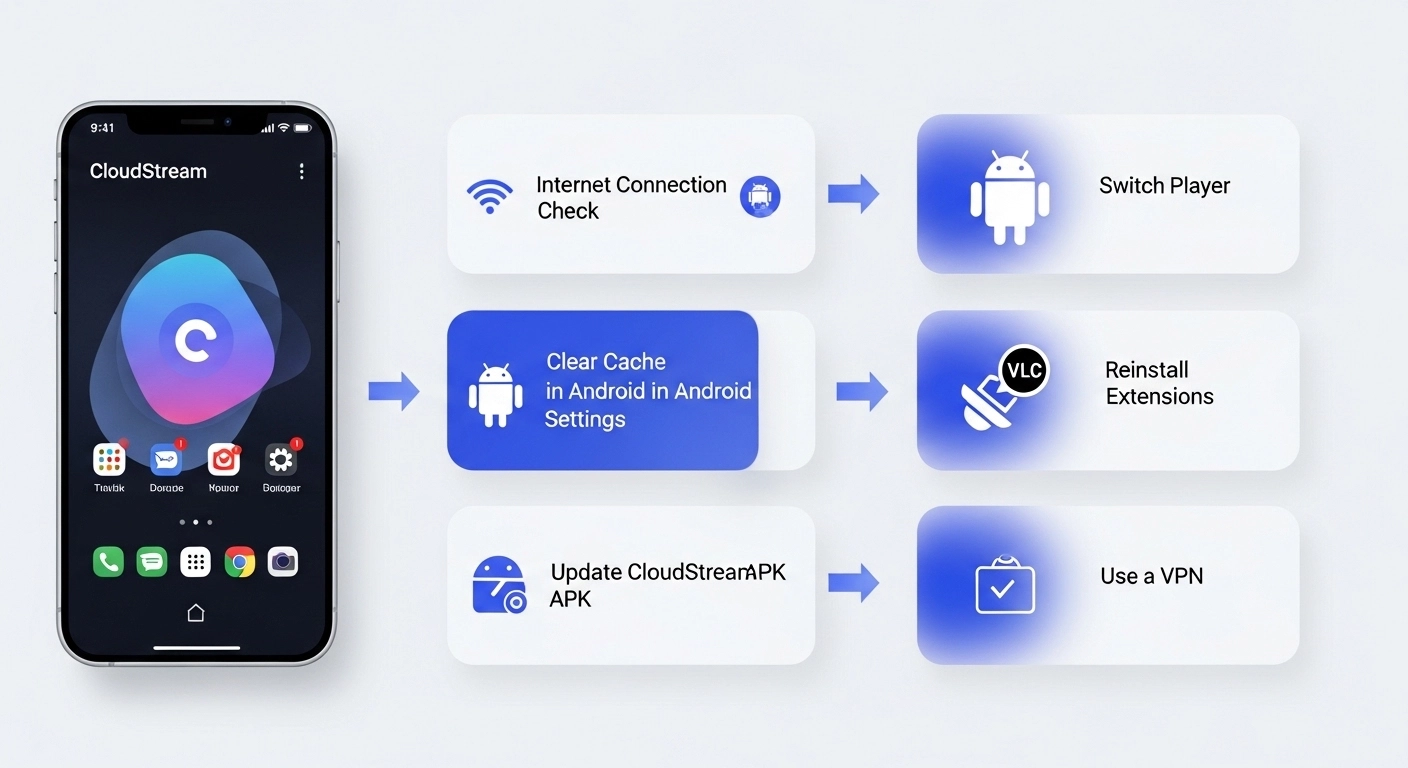
🌐 Check Your Internet Connection
This sounds basic, but a weak or unstable connection is the #1 reason CloudStream video player fails silently — no error, just a frozen or blank screen.
- Open any browser and try loading a website
- Run a speed test — CloudStream needs at least 5 Mbps for SD, 15 Mbps for HD
- Switch from mobile data to Wi-Fi (or the reverse)
- Restart your router if on Wi-Fi
- Try again in CloudStream
🗑️ Clear CloudStream App Cache
A corrupted cache is one of the most common causes of black screen, freezing player, and random crashes in CloudStream. Clearing it takes 30 seconds and fixes many problems instantly.
- Go to your phone’s Settings
- Tap Apps (or Application Manager)
- Find and tap CloudStream
- Tap Storage
- Tap Clear Cache (do NOT tap Clear Data yet)
- Reopen CloudStream and try playing
🔄 Update CloudStream APK to Latest Version
Running an outdated version of CloudStream is a very common cause of player errors. The latest version (v4.6.0 as of 2026) includes important player bug fixes and compatibility updates.
- Visit cloudstream.pk on your browser
- Download the latest CloudStream APK v4.6.0
- Install over the existing version (no need to uninstall)
- Reopen the app — your settings and extensions will remain
🎬 Switch the Built-in Video Player
CloudStream supports multiple video players. The default built-in player sometimes struggles with certain video formats. Switching to MX Player or VLC fixes black screen and no-audio issues instantly.
- Open CloudStream and go to Settings
- Scroll to Video Player
- Change from Built-in Player to MX Player or VLC
- Make sure MX Player / VLC is installed on your device
- Go back and try playing your video
If you do not have MX Player, download it free from Google Play Store. It is the most compatible player with CloudStream extensions.
🔌 Reinstall Your Extensions and Repositories
Extensions are the heart of CloudStream. If an extension becomes broken, outdated, or removed from the repository, the video player will fail to load content — even though the app itself is fine.
- Open CloudStream → Go to Extensions
- Look for extensions marked with a warning icon
- Remove any broken extensions
- Go to Repositories and remove your current repo
- Re-add your preferred repository URL
- Reinstall extensions from the fresh repository
Need the latest working repository links? See our full guide: CloudStream Repositories & Extensions 2026.
🔋 Disable Battery Optimization for CloudStream
Android’s battery optimization feature can interrupt CloudStream’s background network requests, causing the player to freeze mid-stream or fail to load video at all.
- Go to Settings → Battery
- Tap Battery Optimization or App Battery Usage
- Find CloudStream in the list
- Set it to Unrestricted or Don’t Optimize
- Restart the app
🔀 Try a Different Source or Stream Link
CloudStream gives you multiple stream options for most content. If the player fails on one source, the source itself is likely down — not your device or the app.
- When the player fails, press the Back button
- On the episode/movie page, scroll to the Sources section
- Tap a different provider or stream link
- Try playing again
🌍 Use a VPN (For Geo-Blocked or Throttled Content)
If certain content always fails to play in your country — especially users in Pakistan — the content source may be geo-blocked in your region. A VPN bypasses this restriction instantly.
- Download a trusted VPN app (ProtonVPN, Windscribe free tier, or similar)
- Connect to a US or UK server
- Open CloudStream and try playing again
- If it works, that source was geo-blocked in your region
💾 Free Up Device Storage
CloudStream needs free storage to buffer video data during playback. If your device has less than 500MB of free space, the player will frequently crash or freeze.
- Go to Settings → Storage
- Check available free space
- Delete unnecessary files, photos, or unused apps
- Clear cache for other heavy apps
- Aim for at least 1 GB free before streaming
🔁 Reinstall CloudStream Completely (Last Resort)
If none of the above fixes worked, the CloudStream installation itself may be corrupted. A clean reinstall will almost always resolve the issue.
- Go to Settings → Apps → CloudStream
- Tap Uninstall and confirm
- Restart your device
- Visit cloudstream.pk and download the latest APK v4.6.0
- Install it fresh
- Add your repositories again — see our Extensions Guide
Quick Fix Comparison: CloudStream Player Issues
| Fix | Problem It Solves | Time Needed | Difficulty |
|---|---|---|---|
| Clear Cache | Freezing, crashes, black screen | 30 seconds | Easy |
| Switch Player (MX/VLC) | Black screen, no audio | 1 minute | Easy |
| Update APK | All player errors | 2 minutes | Easy |
| Change Source Link | Video won’t load | 10 seconds | Easy |
| Reinstall Extensions | No content found, player fails | 3 minutes | Medium |
| VPN | Geo-blocked / ISP throttling | 2 minutes | Medium |
| Full Reinstall | All issues (last resort) | 5 minutes | Hard |
Frequently Asked Questions
✅ Conclusion
The CloudStream video player not working error is almost always fixable in a few minutes. Start with the quick wins: clear the cache, switch to MX Player, and try a different stream source. If those do not work, update the APK or reinstall your extensions.
For users in Pakistan and other regions, remember that a VPN can unlock geo-blocked content and fix ISP throttling instantly. CloudStream v4.6.0 is the most stable version in 2026, always keep it updated.
Download CloudStream v4.6.0 Now →