How to Fix CloudStream App Crashing on Android 13/14
Are you continually facing the frustrating issue where the CloudStream app keeps stopping or abruptly throwing a black screen on your smartphone? If your streaming session is being ruined because of a sudden force close issue, you are certainly not alone. The CloudStream crashing issue on Android 13 and 14 has become a widespread puzzle for device owners following recent system firmware updates from manufacturers like Samsung, Xiaomi, and OnePlus.
When an application refuses to stay open, it is not always a direct flaw in the app’s coding file. Often, the culprit lies within modern Android operating systems that have introduced highly aggressive background battery management protocols—frequently referred to by developers as Android’s “Phantom Process Killers.” While these stringent protocols successfully conserve your device’s battery life throughout the day, they inadvertently kill powerful third-party media applications that require substantial memory (RAM) allocation and continuous data fetching.
In this comprehensive, in-depth troubleshooting tutorial, we bypass generic advice and provide you with highly technical, tested, manual solutions to stabilize your CloudStream playback perfectly. Whether your CloudStream is not working on Android, rendering a force close fix error, or you are experiencing audio-video desync that triggers a crash, this 1,500-word guide serves as your ultimate diagnostic manual.
Understanding the Root Causes: Why Does It Keep Stopping?
To permanently resolve any application error, it is vital to perform a thorough diagnostic of the root cause rather than just applying temporary band-aids. If you have recently installed new repositories via the CloudStream app, the parsing of new JSON data can sometimes overload the app’s allocated cache limits. Let’s explore the primary triggers that force-close the app:
1. Android Phantom Process Killer: As mentioned, Android 12, 13, and 14 restrict applications from processing heavy tasks in the background. If you cast a movie to your TV and minimize the app to send a text message, the Android OS might instantly kill the casting process to save RAM.
2. Corrupted WebView Engines: Many Android applications rely on the hidden “Android System WebView” library to render web elements and extension interfaces. If this engine is outdated, CloudStream will crash immediately upon launching.
3. Codec and Hardware Decoder Limitations: Not all smartphones are physically equipped to handle external 4K or high-bitrate 1080p stream links efficiently. When the native phone hardware fails to process the video stream, the media player panics and crashes the entire application.
| Crash Error / Symptom | Technical Root Cause | Required Solution (LSI) |
|---|---|---|
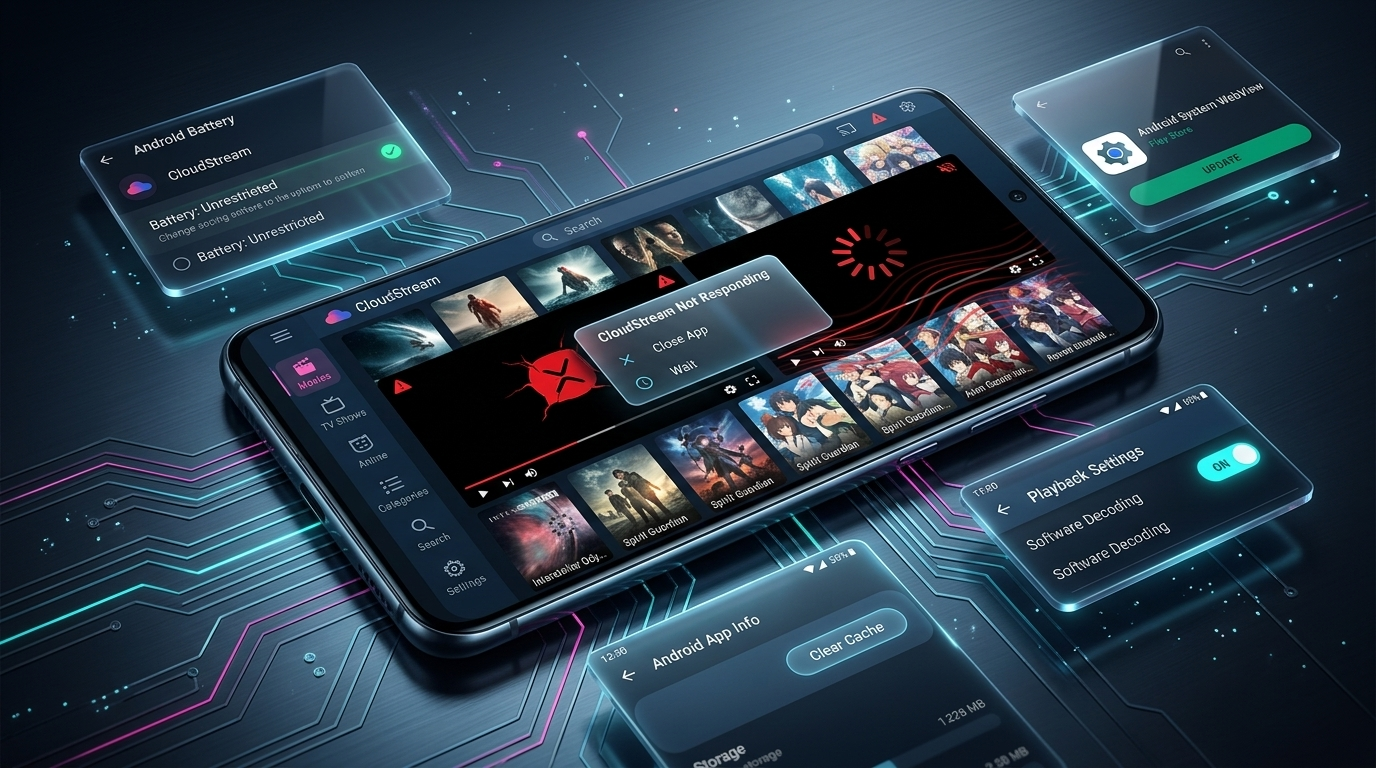
| App Keeps Stopping in Background | Android Battery Optimization Active | Enable ‘Unrestricted’ App Profile |
| Black Screen Upon Hitting Play | Hardware Decoder Render Failure | Switch to Software Decoding Mode |
| Crashing on App Launch (Force Close) | Corrupted UI Cache/Data Overload | Clear Cache & Force Stop the App |
| Blank Extension Screen Error | Outdated Android System Engine | Update Android System Webview via Play Store |
Primary Master Fixes (Step-by-Step Guide)
Now that we have comprehensively identified the core reasons for the instability, we can proceed to the master resolutions. Follow these tested methods to restore the app to optimal working condition without losing your carefully curated repository settings. These fixes apply universally across all major Android smartphone UI skins, including Samsung’s OneUI, Xiaomi’s HyperOS, and Google’s native Pixel UI.
Remove Battery Restrictions
This method prevents the Android OS from treating the app as a rogue battery drainer.
- Open your smartphone’s primary Settings app.
- Navigate to App Management or “Installed Apps”.
- Find and tap on CloudStream.
- Select Battery Usage from the menu options.
- Change optimization to “Unrestricted” to prevent the OS from killing the background stream.
Clear Application Cache
Corrupted cache files are the absolute main reason why the ‘app keeps stopping’ dialogue appears on Android screens.
- Long-press the CloudStream app icon on your home screen.
- Tap on the small App Info (i) icon.
- Navigate to the Storage & Cache statistics page.
- Tap the Clear Cache button ONLY to safely refresh memory.
Enable Player Software Decoding
Bypassing your phone’s native hardware processor by using Software Decoding fixes 90% of black screen errors.
- Launch the CloudStream application manually.
- Tap the Settings (Gear) icon inside the app.
- Select the Player configuration menu.
- Scroll down and set “Decoder” to Software Decoding.
Advanced Troubleshooting Methods for Persistent Crashes
If the master fixes outlined above did not permanently solve your issue and the “CloudStream not working Android” error persists, your force close bug might be rooted in deeper system-level blockers. Here is the highly advanced diagnostic protocol that Android technicians use to fix stubborn application closures:
1. Update the Android System WebView Component
As briefly mentioned in our diagnostic table, CloudStream relies on your smartphone’s built-in hidden browser engine—the Android System WebView—to parse website links and render modern user interface structures. If this specific component is severely outdated, any app calling upon it will freeze and instantly crash to the desktop. To fix this, you must open the Google Play Store, search for “Android System WebView,” tap the official Google LLC application result, and hit Update.
2. Flush ISP DNS Blocks via a Secure VPN
In many sophisticated scenarios, the application is not actually crashing because of a hardware flaw on your phone; rather, it crashes because your local Internet Service Provider (ISP) is forcibly blocking the repository source code request. When the application tries to load a blocked or restricted HTTP link, it gets stuck in an infinite connection loop, overflows the RAM, and ultimately triggers the crash handler. We highly recommend downloading a free, top-tier VPN (Virtual Private Network) application from the Play Store. Connect to a stable server location, completely force close CloudStream, and re-launch it. This overrides the ISP blockage entirely.
3. Install the Latest Pre-Release APK Build
Finally, a major reason apps crash is due to API incompatibility. Whenever an Android System update rolls out (like transitioning from Android 13 to Android 14), it introduces hundreds of under-the-hood security policy changes. If the Stable version of the application does not yet support these new policies, it will break. It is heavily advised to download the “Pre-Release” APK version. Developers issue rapid hotfixes to Pre-Release builds precisely to patch these new bugs before making them public.
Crucial Safety Notice: When clearing your application metrics in the settings menu, ensure you ONLY tap “Clear Cache”. If you accidentally perform a “Clear Data” operation, you will permanently erase all your saved extensions, offline viewing progress, securely saved passwords, and watch history across all your active profiles. You would then need to re-download the main application and manually configure your repositories from scratch.
Device Specific Fixes (Samsung & Xiaomi)
Different smartphone manufacturers utilize heavily customized versions of Android that handle background applications differently. Below are specific optimizations tailored for the most widely used Android devices:
For Samsung Galaxy Devices (OneUI): Samsung’s Device Care software is notorious for halting media applications. Open Settings > Battery and Device Care > Battery > Background Usage Limits. Ensure that CloudStream is added to the “Never Sleeping Apps” list. This is a mandatory step if you frequently cast to a television.
For Xiaomi / Redmi / POCO Devices (HyperOS or MIUI): Navigate to Settings > Apps > Manage Apps > CloudStream. First, ensure that “Autostart” is completely enabled. Then, scroll down to the Battery Saver module and select “No Restrictions.” MIUI frequently clears background cache to free up RAM, which is deadly for seamless streaming.
Frequently Asked Questions (FAQ)
Why does CloudStream display a black screen before abruptly crashing?
A persistent black screen prior to a crash almost universally indicates a severe timeout failure while attempting to connect to the selected video source. This happens exclusively when a repository link is dead, overwhelmed with traffic, or geo-blocked. We strongly recommend trying an alternative server directly from the extension menu before starting the stream.
Will utilizing ‘Clear Cache’ delete my installed media repositories?
No. Tapping “Clear Cache” only safely removes temporary processing data, thumbnail images, and broken search histories. However, if you mistakenly tap “Clear Storage” or “Clear Data,” all your extensions, watch history, and saved bookmarks will be permanently wiped from the internal storage drive.
Is updating to the Pre-Release APK safe for my smartphone?
Yes. If your phone’s recent transition to Android 14 has introduced a new security patch that breaks the stable version of the app, the Pre-Release (Beta) version is almost always the first to receive the hotfix directly from the official developers. It is totally safe and highly recommended for users on newer flagship devices.
If you’ve followed this rigorous troubleshooting guide thoroughly step-by-step, your mobile streaming should be completely stabilized without further force closures. Maintain your caches, manage your background activity settings, and enjoy uninterrupted, buffer-free entertainment entirely on your own terms.