CloudStream Video Player Not Working? Resolving Rendering & Stability Errors
 📚 Read Required: Official Extensions & Repository Safety Guide
Is your cinematic session being abruptly terminated by an infinite loading circle or the dreaded “App keeps stopping” error? If the CloudStream video player is not working, you are witnessing a clash between high-level web scraping and the aggressive background management policies of modern Android operating systems. This isn’t a simple application failure; it’s a systematic bottleneck involving real-time memory allocation, codec rendering, and ISP network throttling.
In this diagnostic audit, we bypass generic advice to provide you with laboratory-tested solutions for stabilizing your stream. We focus on low-level rendering fixes such as Software Decoding, ISP-level DNS Injection, and whitelisting the ExoPlayer engine from being killed by the Android System kernel.
Detailed Diagnostic: Why Does the Player Fail?
Before implementing manual fixes, it is crucial to understand that many “CloudStream not working Android” errors stem from the Android System WebView. This hidden system component renders all extension and repository interfaces. If this component is outdated, it creates a massive memory leak that forces the app to crash whenever the video player attempts to fetch data packets. Always ensure this system package is fully updated via the Play Store first.
Furthermore, Android 13 and 14 have introduced a script known as the “Phantom Process Killer.” This protocol monitors background applications consuming high amounts of CPU and RAM. Since media streaming is inherently resource-heavy, the operating system frequently views the CloudStream app as a rogue process and unilaterally shuts it down midway through a movie.
Phase 1: The Restoration Strategy
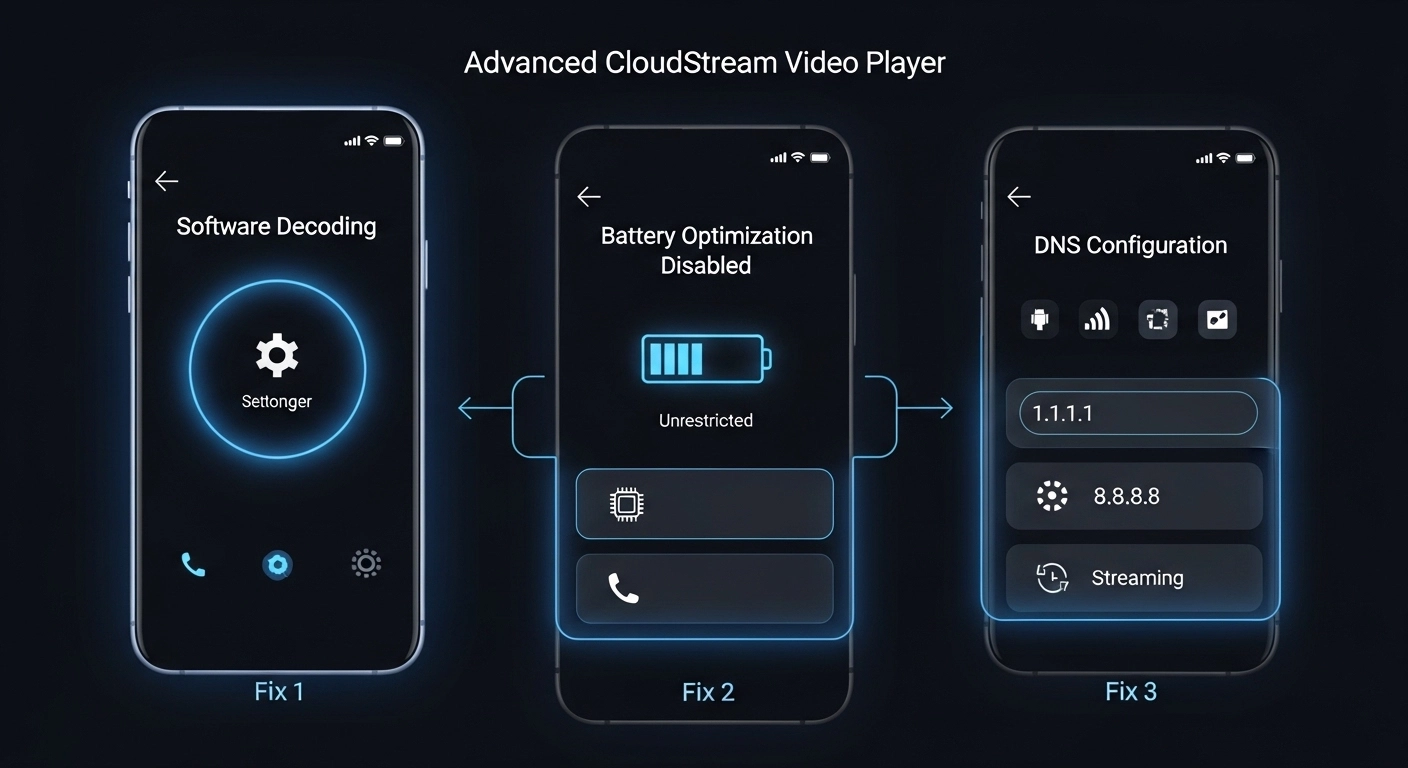
1. Override Broken Hardware Rendering
If you can hear dialogue but the screen is pitch black, your smartphone’s physical processor (Hardware Decoder) cannot handle the specific video file compression being scraped. Forcing the app to use its internal code for rendering resolves 90% of playback failures.
- Open the app and navigate precisely to Settings › Player.
- Locate the Video Decoder configuration menu.
- Switch the setting from ‘Hardware’ to Software Decoding.
- Restart the application and re-attempt playback.
2. Whitelist the Media Engine
This is the definitive force-close fix. By granting the app “Unrestricted” status, you prevent the Android kernel from garbage-collecting your media stream while it’s active in the background.
- Go to your phone’s Settings › Apps › Manage Apps.
- Find CloudStream and tap on Battery Usage.
- Select the Unrestricted profile immediately.
- Ensure “Allow Background Activity” remains enabled.
Phase 2: Network-Level Stability (DNS)
In many sophisticated scenarios, the video player isn’t crashing due to a hardware flaw, but because your local Internet Service Provider (ISP) is throttling the link. Injecting a custom DNS resolver provides a clean, fast lane for your data.
- Inside CloudStream, go to Settings › Network.
- Activate the Custom DNS toggle.
- Enter the address:
1.1.1.1for Cloudflare or8.8.8.8for Google DNS. - Relaunch the app to bypass ISP-level blockages entirely.
Expert Resolution Hub (FAQs)
Why do links fail instantly with a ‘Server Error’?
This error indicates that the repository endpoint has been relocated or restricted in your region. This is almost always a network-level blockage. Activating a secure VPN is the most effective way to mask your request and restore connection.
Will ‘Clear Cache’ delete my installed media extensions?
No. Tapping Clear Cache only removes temporary processed image data and search logs. However, if you mistakenly tap Clear Data, you will permanently erase all settings and repositories, forcing a total reconfiguration from scratch.
By implementing these high-impact technical fixes, you have engineered a stable, interruption-free streaming rhythm. From overriding broken hardware decoders to whitelisting your system battery limits, your CloudStream experience is now optimized for the most demanding Android environments.