CloudStream Data Backup & Restore Guide (2026) Fix Backup Errors & Change Backup Location Easily
CloudStream users often face issues like lost extensions, backup restore errors, or confusion about changing the backup location after updating or reinstalling the app. This guide explains how to create a CloudStream data backup, restore your data safely, and fix common backup errors step-by-step on Android and Android TV devices. Follow the simple methods below to secure your CloudStream settings and recover your data without losing plugins or configurations.
How to Create a CloudStream Data Backup on Android & TV
Many users search how to create a CloudStream data backup after losing extensions, settings, or watch history due to app updates, device reset, or accidental uninstall. The good news is that CloudStream already includes a built-in backup feature that lets you safely save all your app data in just a few steps. Creating a backup ensures your repositories, plugins, and preferences can be restored anytime without setting everything again whether you are using Android phone, Android TV, or Fire TV devices.
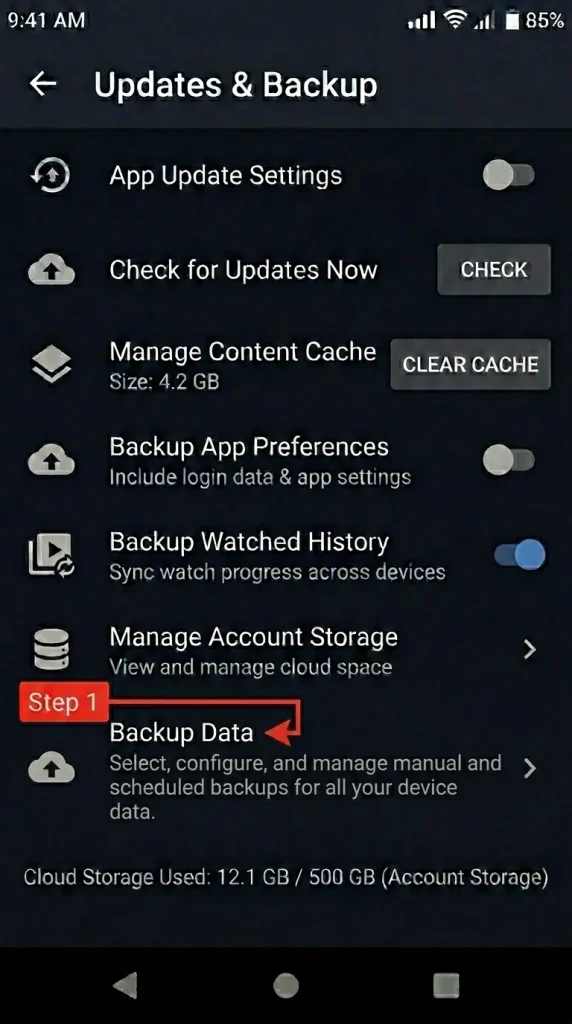
Follow these simple steps to create a CloudStream backup:
Step-by-Step Guide
- Open the CloudStream app on your Android or TV device.
- Tap the Settings icon.
- Go to Updates & Backup section.
- Select Backup Data option.
- Choose the storage location where you want to save the backup file.
- Confirm and wait a few seconds until the backup is created.
Once completed, your backup file will be stored in your selected device storage folder. You can copy this file to cloud storage or another device to keep your data safe.
Pro Tip: Creating regular backups helps avoid data loss when updating CloudStream or switching devices, especially for users in regions with frequent app reinstalls or manual updates.
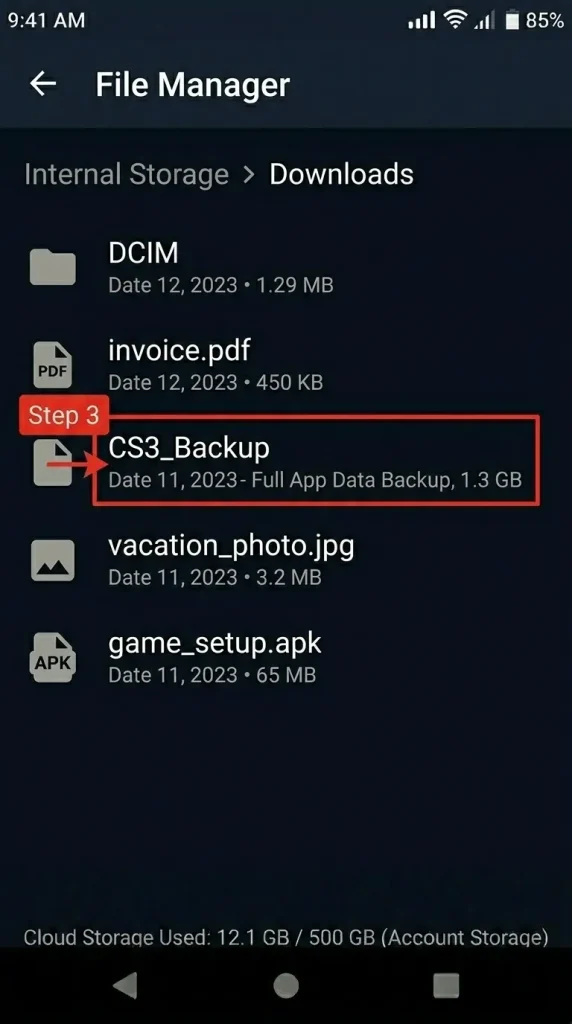
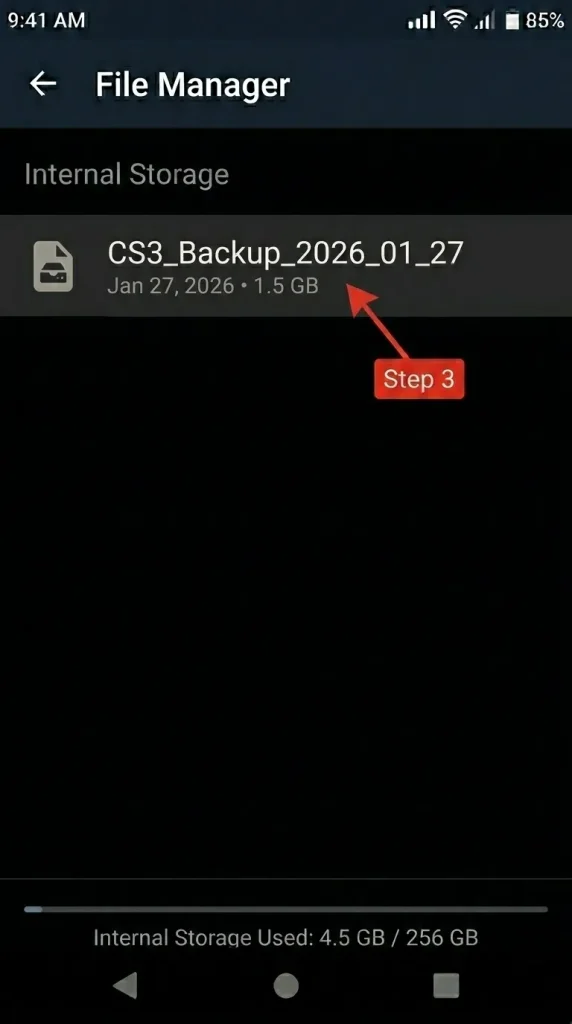
How to Change or Select CloudStream Backup Storage Location
Many CloudStream users face problems when they cannot find their backup file later or the backup gets saved in the wrong folder. This usually happens because the default storage location is not selected properly. Changing the CloudStream backup storage location allows you to save your data in an easy-to-access folder, external storage, or a safer directory so you can restore it anytime without confusion. This feature is especially useful for Android phone and Android TV users who manage files manually or transfer backups between devices.
Follow the steps below to select or change your backup storage location correctly:
Step-by-Step Guide
- Open CloudStream on your Android mobile or TV device.
- Go to Settings from the main menu.
- Tap Updates & Backup section.
- Find and select Backup Folder Location.
- Choose Custom Location instead of default storage.
- Select the folder where you want to save backups (Downloads or a dedicated Backup folder is recommended).
- Tap Apply and allow storage permission if prompted.
After this, all future backup files will automatically save in the selected location, making them easier to locate when restoring data or moving to another device.
Helpful Tip: Choose a folder you can easily access through File Manager or cloud storage. This prevents common restore errors and helps users quickly transfer backups between Android phones, Smart TVs, or TV boxes.
How to Restore Backup Data in CloudStream (Step-by-Step)
If you have reinstalled CloudStream, switched to a new device, or lost your extensions and settings after an update, restoring your backup is the fastest way to get everything back exactly as before. Many users search for how to restore CloudStream backup data because plugins, repositories, and preferences disappear after clearing app data or changing devices. The restore feature allows you to reload your saved configuration in minutes without setting up the app again manually.
Follow this simple step-by-step process to restore your CloudStream backup on Android phones, Android TV, or streaming devices:
Step-by-Step Guide
- Open the CloudStream app on your device.
- Go to Settings from the main screen.
- Select Updates & Backup section.
- Tap Restore Data from Backup option.
- Navigate to the folder where your backup file is saved.
- Select the backup file and confirm the restore process.
- Restart the app if prompted to apply all restored settings.
After restoration, your extensions, repositories, watch history, and app preferences will automatically return, saving you time and effort.
Important Tip: Make sure the backup file is stored in accessible device storage and permissions are allowed; otherwise, CloudStream may not detect the file during restoration.
CloudStream Backup Restore Error Causes & Working Fixes
If you have reinstalled CloudStream, switched to a new device, or lost your extensions and settings after an update, restoring your backup is the fastest way to get everything back exactly as before. Many users search for how to restore CloudStream backup data because plugins, repositories, and preferences disappear after clearing app data or changing devices. The restore feature allows you to reload your saved configuration in minutes without setting up the app again manually.
Follow this simple step-by-step process to restore your CloudStream backup on Android phones, Android TV, or streaming devices:
1. Backup File Not Detected
Problem: CloudStream cannot find the backup file during restore.
Fix:
- Move the backup file to Internal Storage → Downloads folder.
- Avoid deeply nested folders or SD card locations.
- Reopen the app and try restoring again.
2. Wrong Backup File Extension
Problem: Restore fails because the file format is unsupported.
Fix:
- Open your device File Manager.
- Check the backup file extension.
- If the file shows .json, rename it to .txt (or supported format used by your version).
- Try restoring again.
This is one of the most common fixes users miss.
3. Storage Permission Not Allowed
Problem: CloudStream does not have permission to access storage.
Fix:
- Go to Device Settings → Apps → CloudStream → Permissions.
- Enable Storage / Files Access.
- Restart the app and restore again.
Without permission, the app cannot read backup files.
4. Backup Created on Different App Version
Problem: Backup made on an older version may not restore properly.
Fix:
- Update CloudStream to the latest version.
- Reattempt restoration after updating.
Updated versions improve compatibility and reduce restore errors.
5. Corrupted Backup File
Problem: Restore stops or shows error message.
Fix:
- Recreate the backup from the original device if possible.
- Avoid interrupted file transfers when copying backups.
Pro Tip: Always keep a copy of your backup in cloud storage (Google Drive or similar) so you can quickly restore data when changing Android phones, Smart TVs, or streaming devices.
By checking these common causes step-by-step, most CloudStream backup restore errors can be solved within minutes, allowing you to recover your extensions, settings, and personalized setup without starting from scratch.
Common CloudStream Backup Issues & Quick Solutions
Many users create a CloudStream backup successfully but later face problems like missing files, restore failures, or backups not saving properly. These issues usually happen because of incorrect settings, storage restrictions, or small mistakes during the backup process. Understanding the most common CloudStream backup problems and their quick solutions helps you protect your data and restore your setup without wasting time.
Below are the issues users frequently face on Android phones, Android TV, and streaming devices, along with simple working fixes.
1. Backup File Not Saving
Issue: Backup completes but no file appears in storage.
Solution:
- Check the selected backup folder inside Settings → Updates & Backup.
- Make sure storage permission is enabled.
- Try selecting a new folder like Downloads.
2. Backup File Cannot Be Found Later
Issue: Users don’t know where CloudStream saved the backup.
Solution:
- Open File Manager and search for cloudstream backup.
- Set a custom backup location for easier access.
- Avoid using temporary or hidden folders.
3. Restore Option Not Working
Issue: Restore button shows error or does nothing.
Solution:
- Move backup file to internal storage.
- Restart the CloudStream app.
- Ensure the file format is not changed accidentally.
4. Extensions Missing After Restore
Issue: Backup restores partially but plugins are missing.
Solution:
- Update CloudStream to the latest version.
- Restore using the same or compatible app version.
- Reinstall extensions if repository links changed.
5. Backup Fails on Android TV
Issue: Backup or restore fails mainly on Smart TVs or TV boxes.
Solution:
- Allow Files & Media permission manually from device settings.
- Use internal storage instead of USB drive during backup.
- Restart device after creating backup.
Helpful Tip: Always create a fresh backup before updating or reinstalling CloudStream. Keeping multiple backup copies prevents complete data loss and makes device switching easier.
By applying these quick fixes, most CloudStream backup issues can be solved instantly, ensuring your settings, repositories, and viewing preferences stay safe across all devices.
CloudStream Backup FAQs (Users’ Most Asked Questions)
Final Thoughts: Keep Your CloudStream Data Safe
Managing your CloudStream backup properly is the easiest way to avoid losing extensions, settings, and personalized app configurations. Many users only realize the importance of backups after reinstalling the app or switching devices and having to set everything up again from scratch. By creating regular backups, selecting the correct storage location, and understanding how restoration works, you can protect your CloudStream data and recover it anytime without stress.
The key is simple always keep a recent backup file saved in an accessible folder or secure cloud storage. This ensures that even if your device resets, the app updates, or data gets cleared, you can restore your complete setup within minutes on any Android phone, Android TV, or streaming device.
CloudStream’s built-in backup system is designed to make device migration and data recovery easy, but small mistakes like missing permissions or incorrect file locations can cause problems. Following the steps and fixes shared in this guide helps prevent restore errors and keeps your streaming experience smooth and uninterrupted.
Keeping your CloudStream data safe means less troubleshooting, faster restoration, and a hassle-free experience every time you use the app.