CloudStream Subtitles Not Working? (2026 Fix Guide) Solve Subtitle Errors on Android & TV Fast
CloudStream subtitles not working can quickly ruin your streaming experience, especially when subtitles fail to load, appear broken, or don’t show on Android phones or Smart TVs. This issue often happens after app updates, incorrect subtitle settings, or casting problems, leaving many users confused about how to fix it. The good news is that most subtitle errors can be solved within a few minutes by adjusting the right settings or refreshing subtitle sources. In this guide, you’ll learn simple and effective solutions to restore subtitles, configure them properly, and enjoy smooth streaming again on CloudStream without interruptions. If you want to explore more guides, updates, or troubleshooting tutorials, you can also Return to Homepage to find additional helpful resources.
CloudStream Subtitles Not Showing Common Causes & Quick Fixes
Sometimes subtitles in CloudStream do not appear even when the video is playing perfectly. This problem is common among Android phone, Android TV, and streaming device users, especially after app updates or when subtitle settings change automatically. If your CloudStream subtitles are not showing, the issue is usually caused by incorrect subtitle source selection, disabled subtitle settings, encoding conflicts, or unsupported streaming links. In many cases, using the newest app version also helps resolve subtitle compatibility issues, which is why many users prefer to Watch movies on updated APK to ensure better subtitle support and smoother playback. The good news is that these problems are easy to fix once you know where to check. Below are the most common causes along with quick, working solutions to restore subtitles and continue watching without interruptions.
1. Subtitles Are Turned Off in Player Settings
Cause: Subtitles may be disabled by default or accidentally turned off.
Quick Fix:
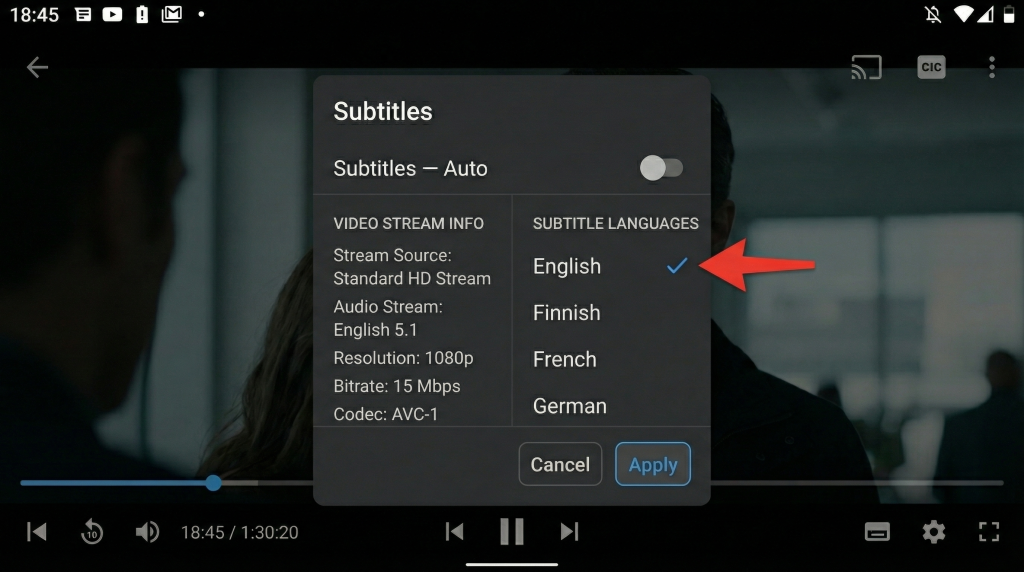
- Start playing any video in CloudStream.
- Open the Player Menu.
- Tap Subtitles option.
- Select Auto or choose an available subtitle language.
This allows CloudStream to automatically load the best available subtitles.
2. Wrong Subtitle Source Selected
Cause: Some streaming links don’t include subtitles.
Quick Fix:
- Open Sources while playing the video.
- Switch to another streaming source.
- Choose one that supports subtitles.
Different sources provide different subtitle availability.
3. Subtitle Encoding Problem
Cause: Incorrect encoding can make subtitles invisible or unreadable.
Quick Fix:
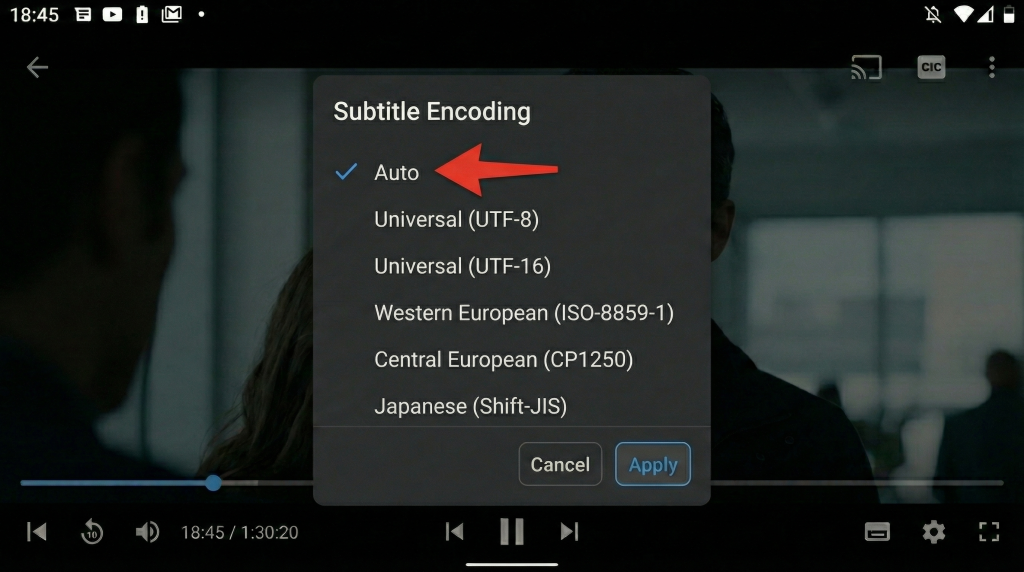
- Go to Subtitles Settings inside the player.
- Find Subtitle Encoding.
- Select Auto (Recommended).
This fixes most subtitle display issues instantly.
4. Internet or Extension Loading Issue
Cause: Subtitle providers may fail to load due to slow connection or extension errors.
Quick Fix:
- Refresh the video or reopen CloudStream.
- Check internet connection stability.
- Update extensions if available.
5. App Cache or Temporary Glitch
Cause: Temporary bugs sometimes prevent subtitles from loading.
Quick Fix:
- Close the app completely.
- Clear app cache from device settings.
- Restart CloudStream and try again.
Broken or Missing Subtitles in CloudStream (Working Solution)
Broken or missing subtitles in CloudStream are one of the most common issues users face while streaming movies or TV shows. Sometimes subtitles appear out of sync, show strange characters, stop midway, or don’t load at all even when enabled. This usually happens because of unsupported subtitle files, incorrect encoding settings, or streaming sources that do not include proper subtitle data. If your CloudStream subtitles are broken or missing, you don’t need to reinstall the app most of the time a few simple adjustments or using Extensions that force subtitles can quickly restore proper subtitle support on Android phones, Smart TVs, and other streaming devices, allowing you to continue watching without interruptions.
Below are proven working solutions that help restore subtitles and improve playback experience.
1. Switch to a Different Streaming Source
Problem: Not every source provides working subtitles.
Solution:
- While playing the video, open Sources.
- Select another available stream.
- Choose a source that includes subtitle support.
Many subtitle problems are source-related rather than app-related.
2. Set Subtitle Encoding to Auto
Problem: Subtitles appear as symbols, boxes, or unreadable text.
Solution:
- Open the video player settings.
- Go to Subtitle Encoding.
- Select Auto (Recommended).
This automatically matches subtitle formatting with your device language.
3. Manually Select Subtitle Language
Problem: Subtitles fail to load automatically.
Solution:
- Tap the Subtitles option in the player.
- Choose your preferred language manually instead of Auto.
- Reload playback if needed.
4. Refresh Playback or Restart the App
Problem: Temporary app glitch causes subtitles to disappear.
Solution
- Close the video and play it again.
- Restart CloudStream completely.
- Reopen the same content.
Small playback refreshes often fix missing subtitle loading.
5. Update Extensions or App Version
Problem: Old extensions may fail to fetch subtitle data.
Solution
- Update CloudStream to the latest version.
- Refresh or reinstall extensions if subtitles keep failing.
Updated extensions improve subtitle compatibility.
CloudStream Subtitles Casting Problem on TV & Chromecast Fix
Many users notice that subtitles work perfectly on their phone but disappear or stop showing when casting CloudStream content to a TV or Chromecast device. This usually happens because subtitle data is not transferred correctly during casting, or the TV player uses different subtitle settings than the mobile app. As a result, subtitles may appear on the phone but fail to display on Smart TVs, Chromecast, or Android TV devices. If you’re facing this issue, you don’t need to switch devices or reinstall the app. Instead, you can follow a quick guide to Subtitles not working? Fix it and apply a few simple adjustments that restore subtitles and make casting work smoothly again.
Below are the most effective fixes trusted by CloudStream users.
1. Use “Play with Web Video Cast” Option
Problem: Default casting sometimes skips subtitle data.
FIx:
- Open the episode or movie in CloudStream.
- Long-press the Play button.
- Select Play with Web Video Cast.
- Connect to your TV or Chromecast device.
This method transfers subtitles more reliably during casting.
2. Enable Subtitles Before Casting
Problem: Subtitles enabled after casting may not sync properly.
Fix
- Turn subtitles ON in CloudStream player first.
- Select subtitle language.
- Then start casting to the TV.
Pre-loading subtitles ensures they are included in the stream.
3. Change Subtitle Encoding to Auto
Problem: TV cannot read subtitle format correctly.
Fix:
- Open player Subtitle Settings.
- Set Subtitle Encoding → Auto.
- Restart casting session.
This improves compatibility between Android devices and TV players.
4. Try a Different Streaming Source
Problem: Some sources don’t support subtitle casting.
Fix
- Open Sources menu.
- Select another streaming link.
- Reconnect casting.
Different sources provide different subtitle support levels.
5. Restart Chromecast or Smart TV
Problem: Temporary connection glitch blocks subtitle loading.
Fix
- Disconnect casting.
- Restart TV or Chromecast device.
- Reconnect and play again.
A quick restart often resolves sync issues.
How to Change & Customize Subtitles Settings in CloudStream
Many CloudStream users struggle with subtitles that are too small, out of sync, hard to read, or displayed in the wrong language. The good news is that CloudStream provides built-in subtitle customization settings that allow you to fully control how subtitles appear during playback. If you want clearer text, better timing, or the correct language, adjusting the subtitle settings can instantly improve your streaming experience on Android phones, Smart TVs, and Android TV devices. Below is a simple step-by-step guide to help you customize subtitles properly and fix common viewing issues.
1. Step 1: Open Subtitle Settings in Player
- Play any movie or episode in CloudStream.
- Tap the screen to open the video player menu.
- Select the Subtitles (CC) option.
- Open Subtitle Settings.
This is where all customization options are available.
2. Step 2: Change Subtitle Language
Problem: Wrong language subtitles appear automatically.
Fix
- Select your preferred language manually.
- Avoid Auto mode if incorrect subtitles load frequently.
Choosing the correct language ensures accurate subtitle syncing.
3. Step 3: Adjust Subtitle Size & Style
Problem: Subtitles are too small or difficult to read on TV screens.
Fix:
- Increase Text Size for Smart TVs.
- Change font style or background if available.
- Use larger text for better viewing from distance.
This is especially helpful for Android TV and Chromecast users.
4. Step 4: Fix Subtitle Delay (Sync Issue)
Problem: Subtitles appear earlier or later than audio.
Fix
- Find Subtitle Delay option.
- Increase or decrease timing until dialogue matches text.
Small timing adjustments usually solve sync problems instantly.
5. Step 5: Set Subtitle Encoding to Auto
Problem: Subtitles show symbols or broken characters.
Fix
- Go to Encoding Settings.
- Select Auto (Recommended).
This ensures subtitles display correctly across different languages and devices.
CloudStream Subtitles FAQs (Most Asked Questions Answered)
Final Thoughts: Fix Subtitle Issues Permanently in CloudStream
Subtitle problems in CloudStream can be frustrating, but in most cases they are caused by simple settings, unsupported sources, or minor app glitches not serious errors. By selecting the right subtitle source, adjusting encoding and sync settings, and keeping the app updated, you can permanently fix most subtitle issues on Android phones, Smart TVs, and Chromecast devices. Following the solutions shared in this guide helps ensure subtitles load correctly, stay synchronized, and remain easy to read every time you stream.
Keeping your subtitle settings optimized and using reliable sources will give you a smooth, interruption-free CloudStream experience without recurring subtitle problems.