CloudStream No Links Found? Solve Not Loading & Extension Errors on Android & TV
If you are seeing the CloudStream No Links Found or content not loading error, you’re not alone. Many Android and Smart TV users face this issue when extensions fail to load, providers stop responding, or app settings become outdated. The good news is that this problem is usually easy to fix and does not mean CloudStream is broken. In this guide, you’ll learn simple, working solutions to restore links, fix loading errors, and get CloudStream running smoothly again within minutes. Visit main CloudStream site
CloudStream No Links Found Error Causes & Step-by-Step Fixes
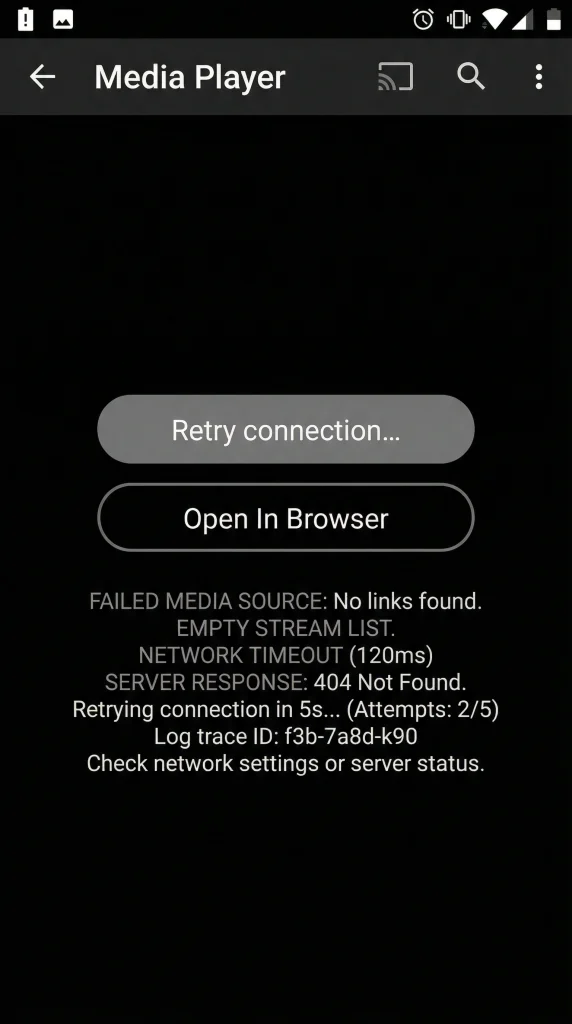
The CloudStream “No Links Found” error usually appears when the app cannot fetch streaming sources for a movie or TV show, even though the content actually exists. This issue is common among users on Android phones, Android TV, and other streaming devices, and it’s often caused by outdated extensions, network connection problems, or temporary provider errors rather than a permanent app failure. One of the quickest solutions many users try is to Download latest bug-free Cloudstream, since newer versions usually include fixes for broken sources, extension compatibility issues, and performance bugs. If CloudStream is still not loading links or continues showing the “No Links Found” message, the troubleshooting steps below will help you identify the real cause and restore working streaming links quickly.
1. Update CloudStream to the Latest Version
Cause: Older app versions may fail to communicate with providers.
Fix:
- Open CloudStream settings.
- Check for available updates.
- Install the latest version and restart the app.
Updated versions improve provider compatibility and fix loading errors.
2. Check Internet Connection Stability
Cause: Weak or unstable internet prevents links from loading.
Fix:
- Switch between Wi-Fi and mobile data.
- Restart your router.
- Ensure stable internet speed for streaming.
A stable connection allows extensions to fetch links properly.
3. Update or Refresh Extensions
Cause: Outdated extensions cannot retrieve streaming sources.
Fix:
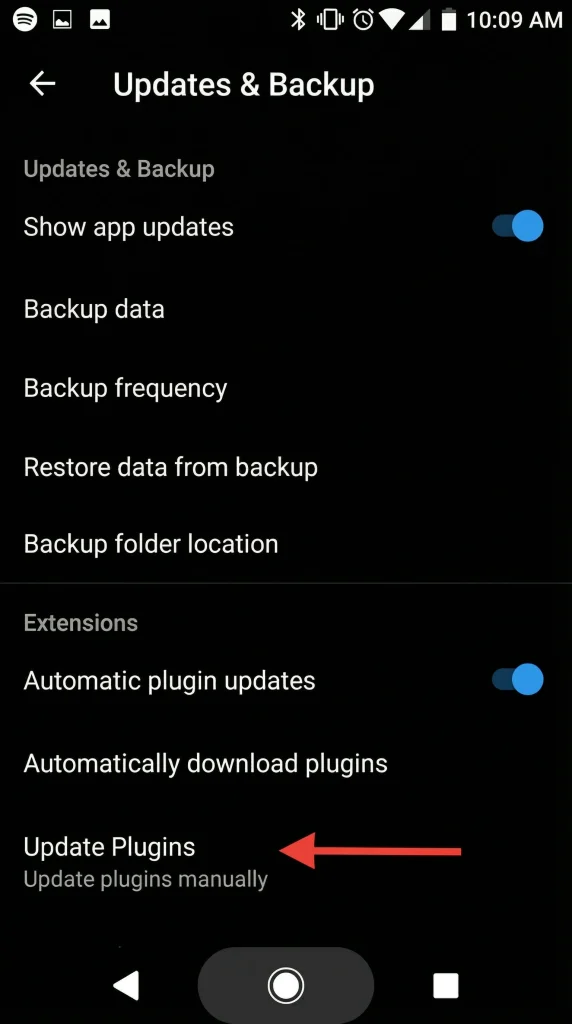
- Go to Settings → Extensions.
- Select Update Plugins/Repositories.
- Restart CloudStream after updating.
This is one of the most effective fixes for the “No Links Found” error.
4. Clear App Cache
Cause: Temporary cache files may block provider loading.
Fix:
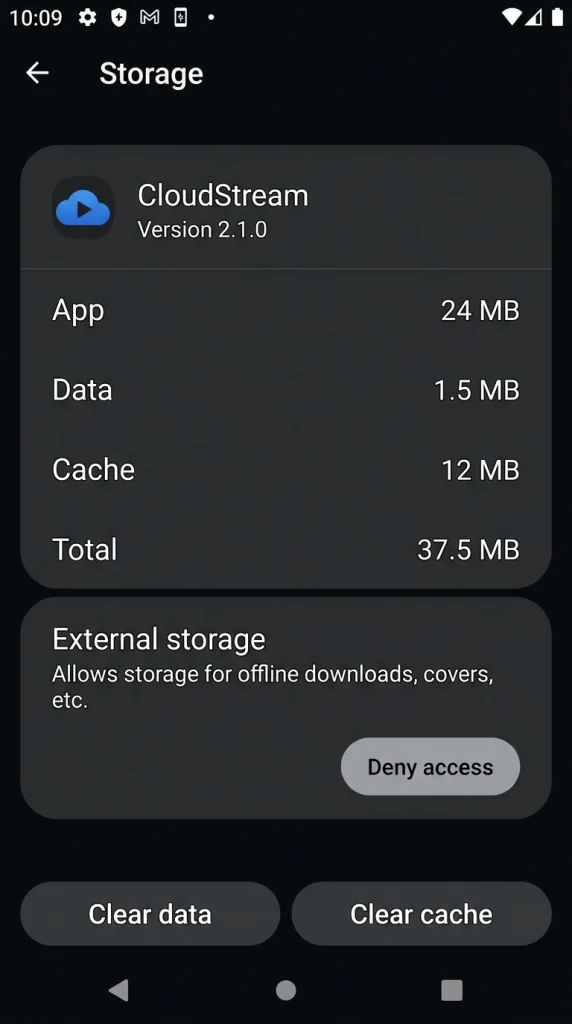
- Open Device Settings → Apps → CloudStream.
- Tap Storage.
- Select Clear Cache (not data).
- Relaunch the app.
Clearing cache refreshes app communication with providers.
5. Try a Different Streaming Provider
Cause: Some providers may be down or under maintenance.
Fix:
- Open another streaming source inside CloudStream.
- Select a different provider or extension.
Not all providers work at the same time, so switching sources often solves the issue instantly.
6. Check Provider Availability
Cause: Content may be temporarily unavailable in your region.
Fix:
- Try another title to confirm the issue.
- Wait and retry later if providers are updating.
Sometimes links return automatically after provider recovery.
Extensions Not Loading in CloudStream (Quick Working Solutions)
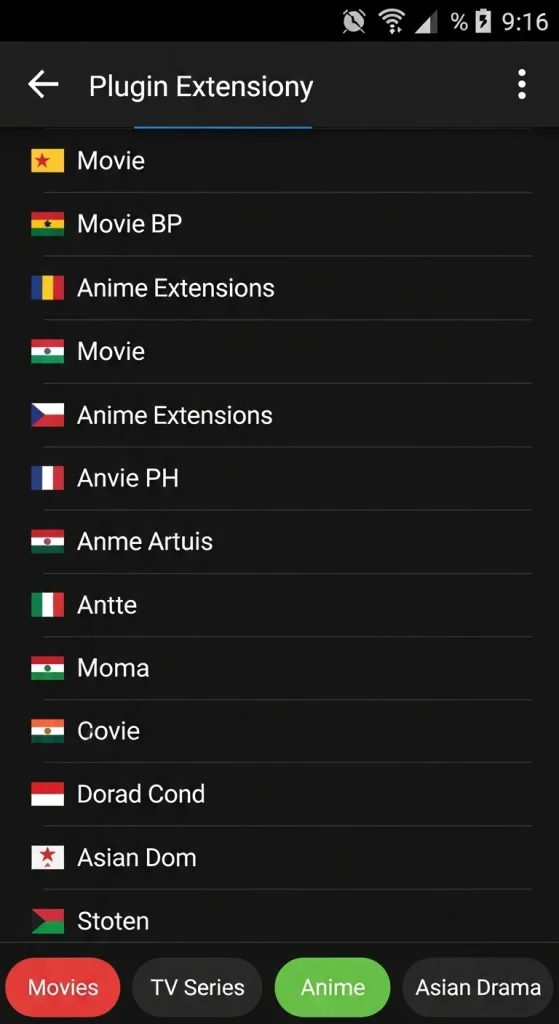
When CloudStream extensions fail to load, the app cannot fetch streaming sources, which often results in errors like No Links Found or content not playing at all. Many users on Android phones, Android TV, and other streaming devices face this issue after app updates, repository changes, or incorrect settings. In most cases, the problem occurs because the app doesn’t have active providers installed. The good news is that this issue is usually temporary and can be fixed quickly without reinstalling the app. Simply refresh the repositories and Add fully working extensions so CloudStream can pull new streaming links again. By following the solutions below, you can restore providers, refresh extensions, and get CloudStream running smoothly without interruptions.
1. Update All Extensions and Repositories
Problem: Outdated extensions stop communicating with streaming providers.
Solution:
- Open CloudStream Settings.
- Go to Extensions or Updates & Backup section.
- Tap Update Plugins/Extensions.
- Restart the app after updating.
Updated extensions restore broken provider connections.
2. Check Internet Connection
Problem: Extensions cannot load data due to unstable internet.
Solution:
- Switch Wi-Fi or mobile data connection.
- Restart router or reconnect network.
- Ensure stable internet before opening extensions.
Extensions require active connectivity to load sources.
3. COpen Repository Link in Browser
Problem: Repository server may be temporarily down.
Solution:
- Copy the repository URL.
- Open it in your device browser.
- If it doesn’t load, wait or try another repository.
This helps confirm whether the issue is server-related.
4. Clear CloudStream Cache
Problem: Corrupted cache blocks extension loading.
Solution:
- Go to Device Settings → Apps → CloudStream.
- Open Storage.
- Tap Clear Cache.
- Relaunch CloudStream.
Cache refresh often fixes loading glitches instantly.
5. Reinstall Problematic Extensions
Problem: Some extensions may install incorrectly.
Solution:
- Remove the non-working extension.
- Install it again from a trusted repository.
- Restart CloudStream.
Fresh installation rebuilds extension files correctly.
5. Update CloudStream App Version
Problem: Older versions may not support newer extensions.
Solution:
- Install the latest CloudStream update.
- Restart device after updating.
New versions improve compatibility and loading speed.
How to Fix CloudStream Not Working or Not Loading Content
If CloudStream is not working or content keeps loading without playing, it can quickly become frustrating—especially when the app opens normally but movies or TV shows refuse to load. This issue commonly affects Android phones, Android TV, and other streaming devices due to outdated app versions, extension errors, cache problems, or unstable internet connections. In many cases, a few quick checks can resolve the issue and restore normal playback. However, if the problem continues even after troubleshooting, some users prefer to Check best streaming alternatives that offer similar features and reliable streaming. The solutions below will help you fix common CloudStream loading problems and get your streaming experience back to normal without reinstalling everything.
1. Restart the CloudStream App
Problem: Temporary glitches stop content from loading.
Fix:
- Close CloudStream completely from recent apps.
- Reopen the app and try playing content again.
A simple restart often refreshes loading processes.
2. Update CloudStream to the Latest Version
Problem: Older versions may fail to load providers or links.
Fix:
- Open CloudStream settings.
- Check for updates.
- Install the latest version and restart the app.
Updates fix compatibility and playback bugs.
3. Clear App Cache
Problem: Corrupted cache files block content loading.
Fix:
- Go to Device Settings → Apps → CloudStream.
- Tap Storage.
- Select Clear Cache.
- Launch the app again.
This refreshes app performance without deleting data.
4. Check Internet Connection
Problem: Slow or unstable internet prevents providers from loading streams.
Fix:
- Switch networks (Wi-Fi ↔ Mobile Data).
- Restart router.
- Ensure stable connection before streaming.
CloudStream requires consistent connectivity to fetch links.
5. Update or Refresh Extensions
Problem: Extensions provide streaming sources; outdated ones stop loading content.
Fix:
- Go to Settings → Extensions.
- Update plugins or reinstall non-working extensions.
- Restart CloudStream.
Fresh installation rebuilds extension files correctly.
5. Try a Different Streaming Source
Problem: Some providers may be temporarily down.
Fix:
- Open Sources menu.
- Select another provider or link.
Switching sources often fixes loading instantly.
5. Restart Your Device
Problem: Background system conflicts affect playback.
Fix:
- Restart your Android phone or Smart TV.
- Open CloudStream again and test playback.
Device refresh clears temporary system errors.
CloudStream No Links Found FAQs (Most Asked Questions)
Final Thoughts: Fix CloudStream Errors Permanently
CloudStream errors like No Links Found, extensions not loading, or content failing to play are usually caused by outdated plugins, incorrect settings, or temporary provider issues not permanent app problems. By keeping CloudStream updated, refreshing extensions regularly, and maintaining a stable internet connection, most errors can be prevented before they occur. Following the fixes shared in this guide helps ensure smooth streaming on Android phones, Smart TVs, and streaming devices without repeated troubleshooting.
With the right setup and regular updates, you can enjoy CloudStream with stable performance and error-free streaming every time.